| Step |
Instructions
|
| 1 |
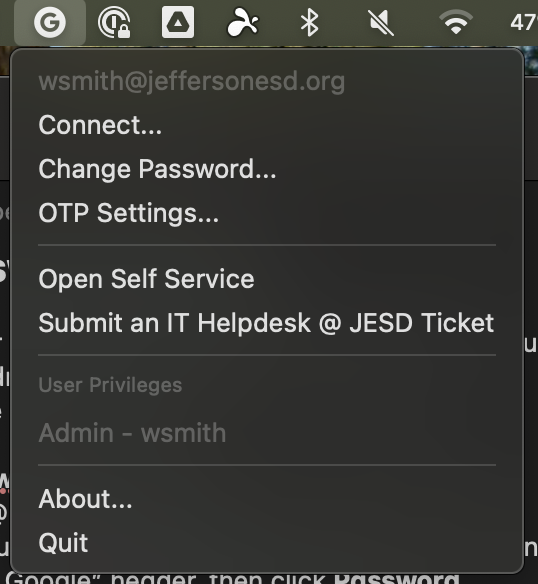
Click on the G icon in your Mac menu bar at the top of the screen. You should see your email address and a menu with “Connect” and “Change Password” come up when you do.
(You may be prompted to log in again, if so, please do.)
|
|
2
|
Click “Change Password”
|
|
3
|
When the Change passsword window comes up, click Sign in, then sign in with your Google @ JESD credentials (your email address and password).
|
|
4
|
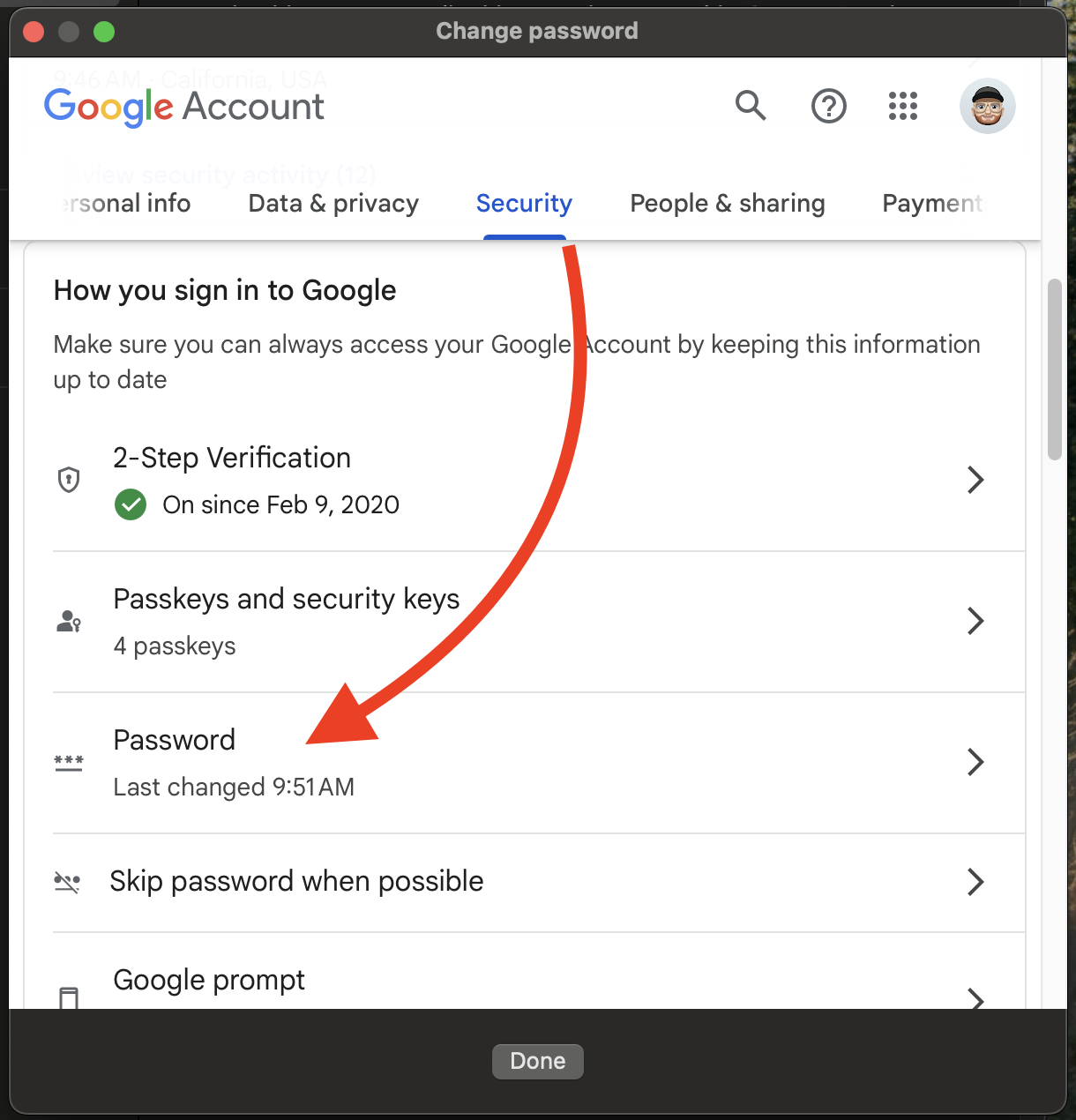
Once you’re logged in, you should be on the Security tab. Scroll down to the “How you sign in to Google” header, then click Password.
|
|
5
|
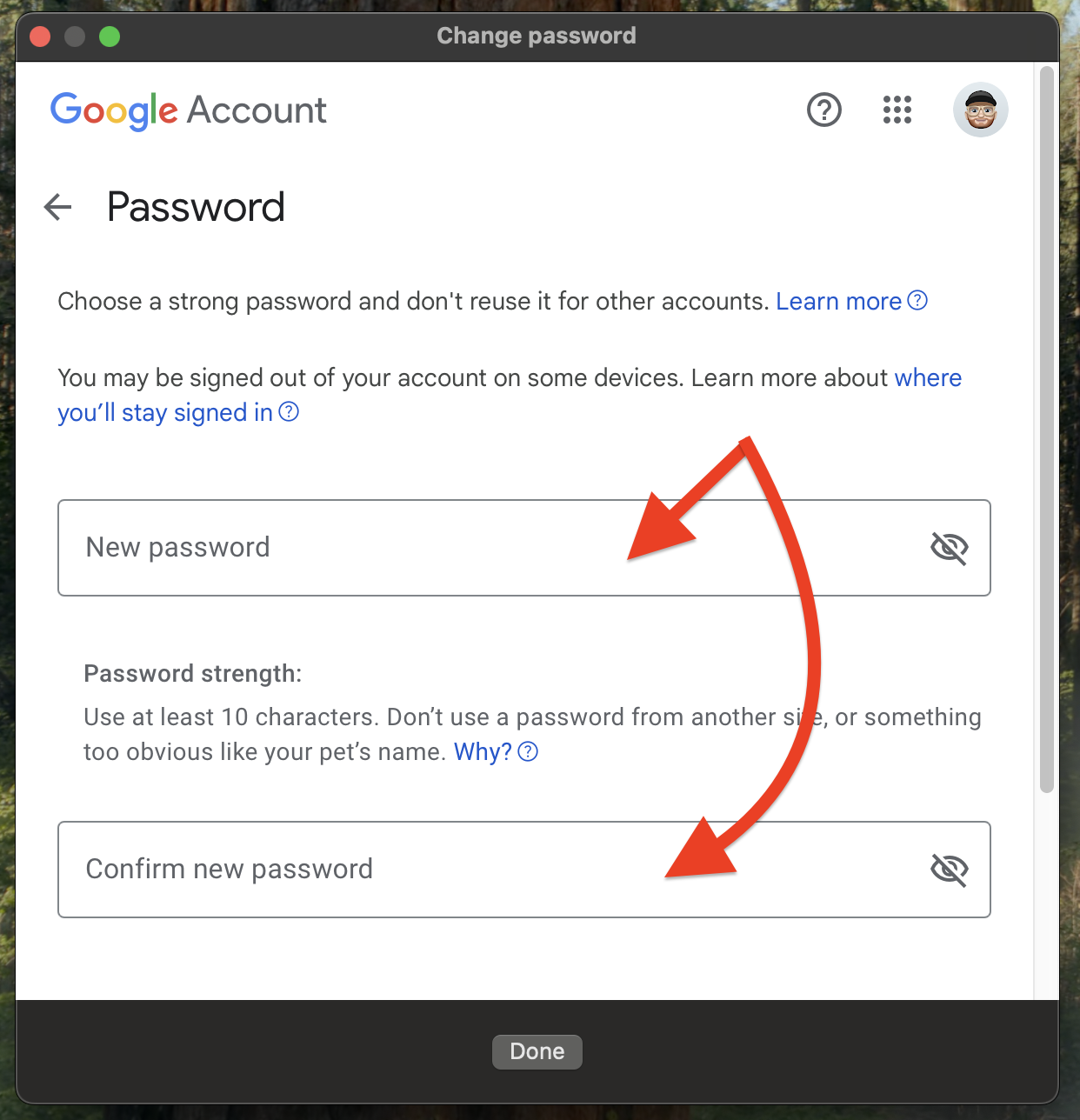
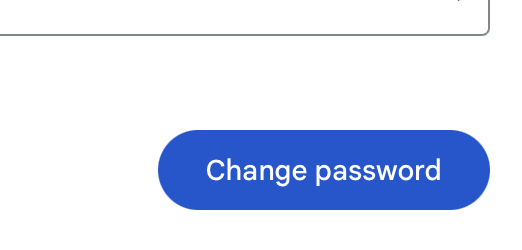
Enter a new password twice, then SCROLL DOWN until you see the "Change password" button, as shown below. (DO NOT click "Done" yet.) Click "Change password."
- Do not use your name, your birthday, information about your school, or anything that’s easily guessable.
- It must be a minimum of 12 characters long, preferably 16.
- You must include an uppercase letter, a number, and a symbol.
- Consider using a passphrase (reference the instructional training video for further information).
|
|
6
|
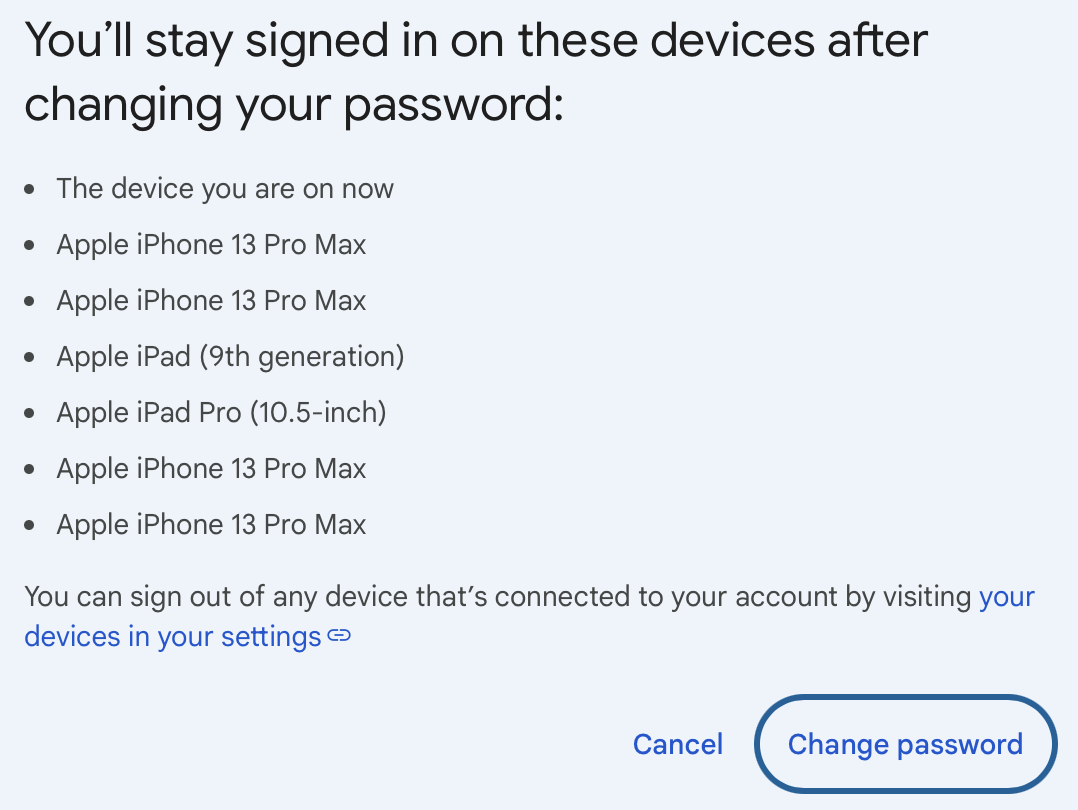
You'll see a list of devices you're currently signed in on. Click "Change password" again.
|
|
7
|
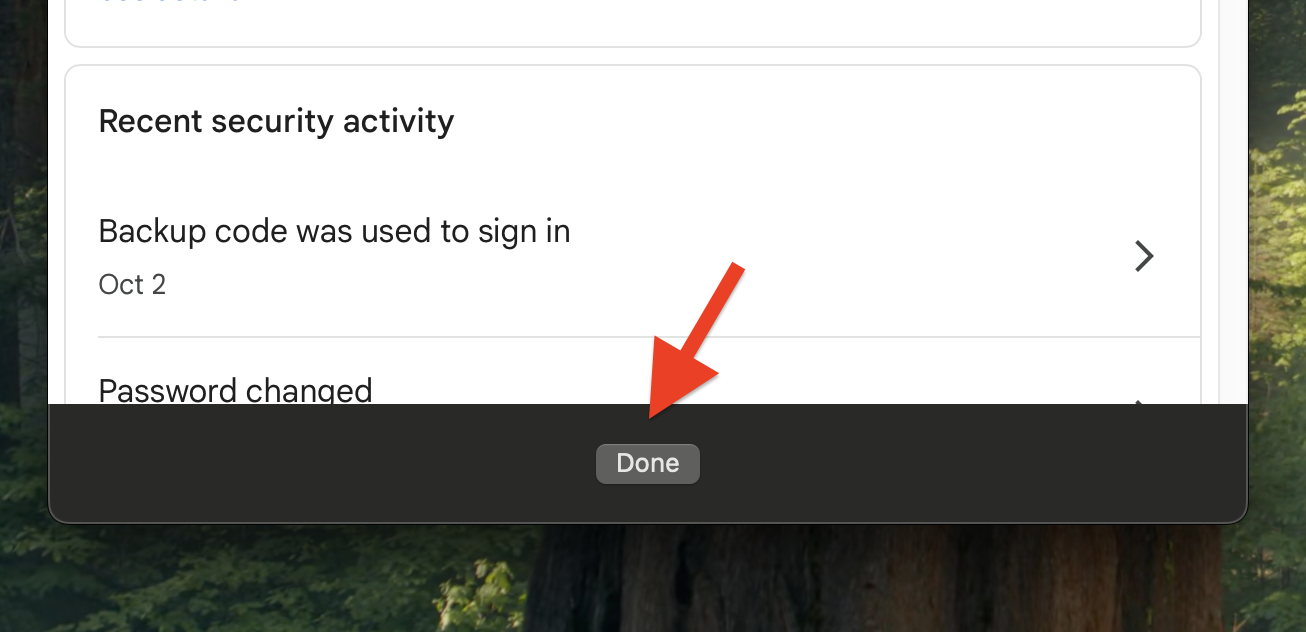
At the bottom of the window, click Done.
|
|
8
|
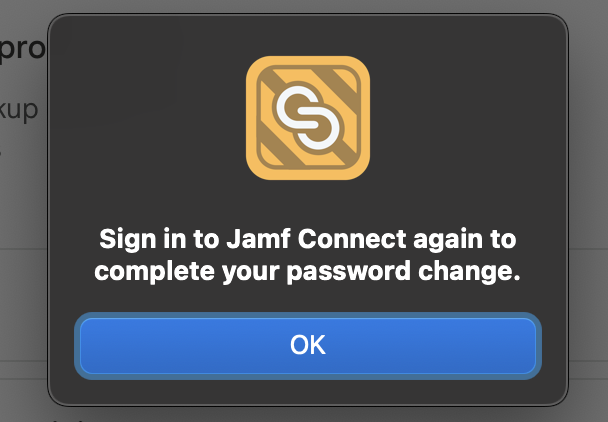
A message will pop up saying “Sign into Jamf Connect again to complete your password change. Click OK.
|
|
10
|
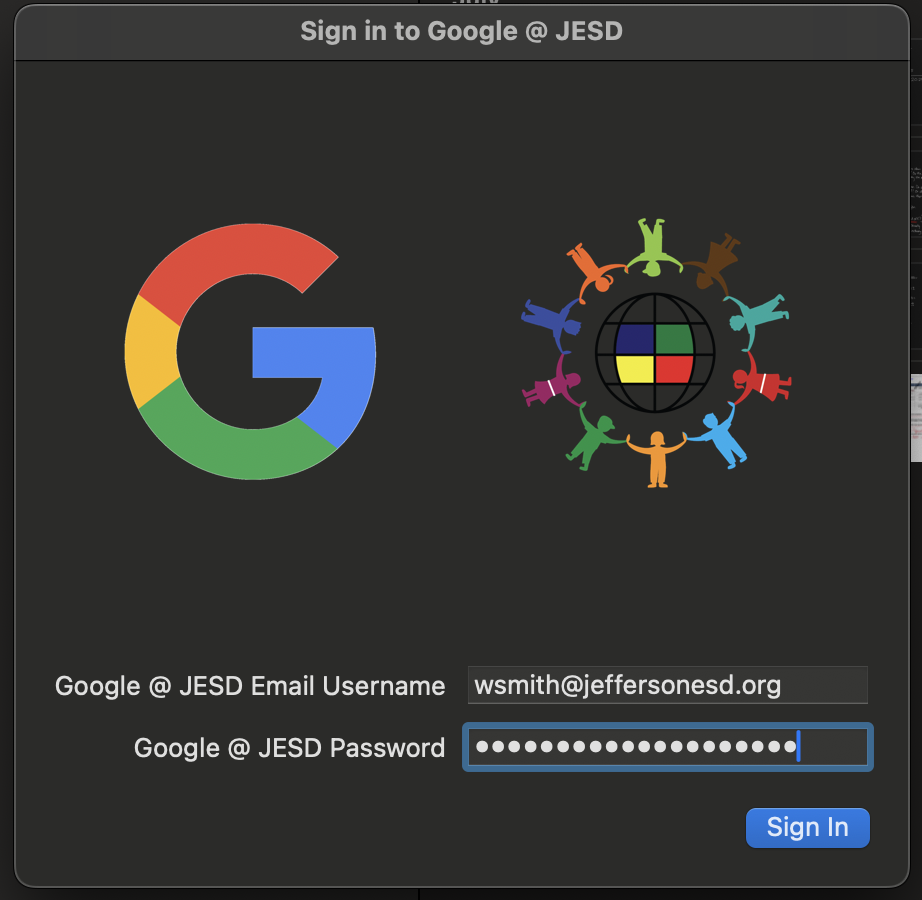
In the "Sign in to Google @ JESD" window, enter in your email address and the new password you just created. Click "Sign In."
|
|
11
|
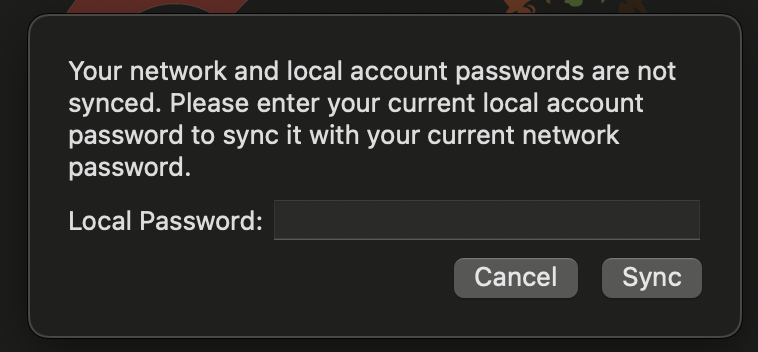
In this window, enter your OLD password - the one you just changed - and click Sync.
|
|
12
|
You're all done!
|